


10 common Power BI sharing scenarios
Use these as a quick reference to figure out which sharing method fits your situation.
1. Sharing with a single colleague
Direct share via a sharing link, both parties need Pro. Done in two clicks. This is what native Power BI was built for.
2. Sharing with a small internal team (5–20 people)
Add them to a workspace. Everyone needs a Pro licence, but the management overhead is low at this scale.
3. Publishing reports to a broad internal audience
Publish a Power BI App from your workspace. Viewers get a curated, navigable experience. They still need Pro unless the workspace is on F64+.
4. Sharing with a single external client
A guest account works at this scale. The client signs in with their own email; you grant them access to specific content. Both parties need Pro.
5. Sharing with 20+ external clients
Guest accounts stop scaling. This is where you need either a custom Embedded build or a portal like DataTako. See the BI agency playbook.
6. Embedding reports inside your SaaS product
Power BI Embedded with the app-owns-data pattern. Your application authenticates to Power BI via a service principal and renders reports inside your own UI. See our Embedded guide.
7. Delivering branded client portals at scale
White-label portals via DataTako. Each client sees their own logo, domain, and colours. Marketing agencies especially — see the marketing agency playbook.
8. Compliance-sensitive sharing (financial services, healthcare)
Embedded with audit logs, RLS scoped per client, and identity isolation. The compliance requirements drive the architecture. See the financial services playbook.
9. Sharing operational dashboards with frontline staff
Power BI Apps if everyone has Pro; embedded portal if not. Mobile-friendly delivery is usually the harder requirement.
10. Publishing genuinely public data
Publish to Web is the right tool for this — and only this. Annual reports, public statistics, marketing dashboards. Anything else needs authenticated sharing.
How to share a Power BI report
Six steps from a report sitting in Power BI Desktop to viewers actually consuming it:
- Publish to the Power BI Service. Save and publish from Power BI Desktop to a workspace. Reports can only be shared once they're in the Service, not from Desktop.
- Pick the right workspace. Workspaces on a Fabric capacity behave differently from regular workspaces. If your audience is large or external, the workspace needs to be on a capacity.
- Choose your sharing method. Native sharing (workspace, link, app) for internal Pro-licensed users; Embedded or DataTako for external or unlicensed audiences.
- Configure security. Set up Row-Level Security if different viewers should see different slices. Critical for multi-tenant or compliance scenarios.
- Test as a non-creator. Use Power BI's "View as" feature or sign in with a viewer account. What looks fine to you as the report creator can break for someone with fewer permissions.
- Set up subscriptions if needed. Scheduled email delivery for stakeholders who want a snapshot rather than the live report.
For a deeper walkthrough of every method and its trade-offs, see 4 ways to share Power BI reports with external users.
Best practices for sharing Power BI reports
- Match the method to the audience. Native sharing for internal Pro-licensed users; embedding for external audiences; Publish to Web only for genuinely public data.
- Don't share to email lists. Share to security groups instead. People come and go; groups are easier to manage than rebuilding share lists every quarter.
- Use Power BI Apps for broad audiences. App publishing gives viewers a curated experience and lets you push updates without re-sharing each report.
- Always configure RLS for multi-tenant scenarios. If different viewers should see different data, RLS belongs in the data model, not in separate reports per client.
- Audit who has access quarterly. Permission creep is real. Reports accumulate viewers; review and prune.
- Don't use Publish to Web for anything confidential. It generates a public URL anyone with the link can view. Search engines have indexed Publish-to-Web reports containing sensitive data before.
- Plan licensing before scaling. Map your audience growth against per-user vs capacity costs. The break-even sits around 30 external viewers or 100 internal viewers.
- Brand it when it matters. External-facing reports under powerbi.com look unprofessional. White-label portals are worth the investment for client-facing content.
The licensing trap when sharing externally
The single most expensive mistake in Power BI sharing is assuming external sharing works the same as internal sharing. It doesn't, and the licensing model is where teams discover this.
Every viewer on the native Power BI Service needs a licence. Pro at $14/month or PPU at $24/month. Sharing with 100 external users on Pro is $1,400 per month — and that's before guest-account management overhead.
Fabric capacity unlocks free viewing — partially. A Fabric F64 capacity (~$8,410/month) includes free Pro for users in your tenant. External users still need their own licence, or they need to consume content through an embedded portal.
Power BI Embedded bypasses per-viewer licensing. With app-owns-data embedding on any Fabric F SKU, viewers consume reports without their own Power BI licence at all. This is the only scalable model for external sharing.
Building Embedded yourself is a project. Four to six months of engineering work for the embed token plumbing, auth flow, admin consent, multi-tenant RLS, and the surrounding portal. This is the build-vs-buy decision that defines most external-sharing projects.
We model the full cost comparison in share Power BI reports without additional Pro licences and the head-to-head in Power BI Embedded vs Pro vs Premium.
Where DataTako fits
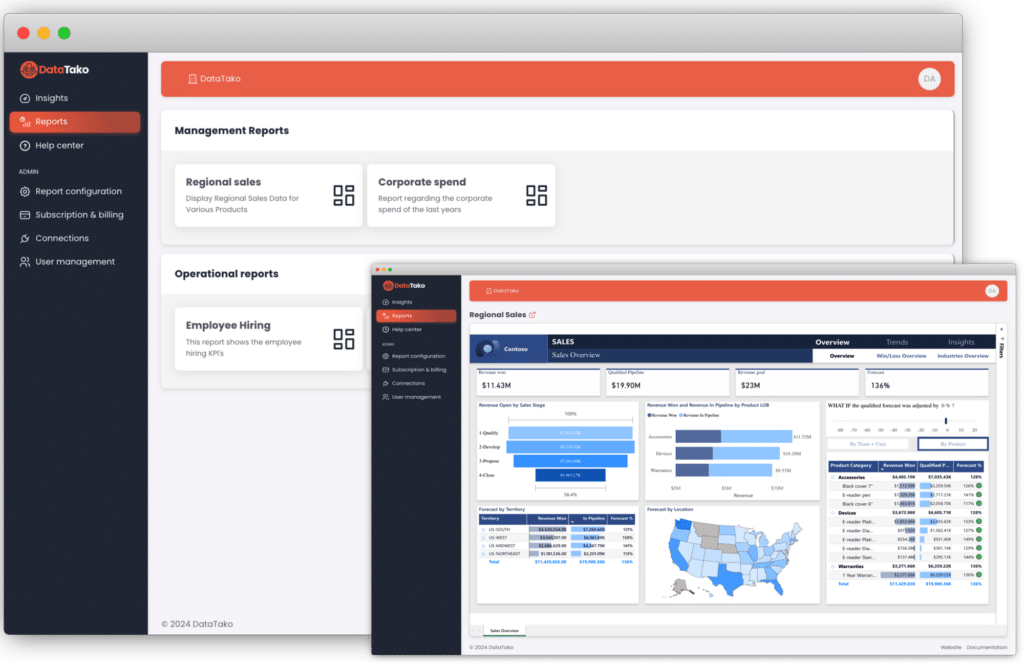
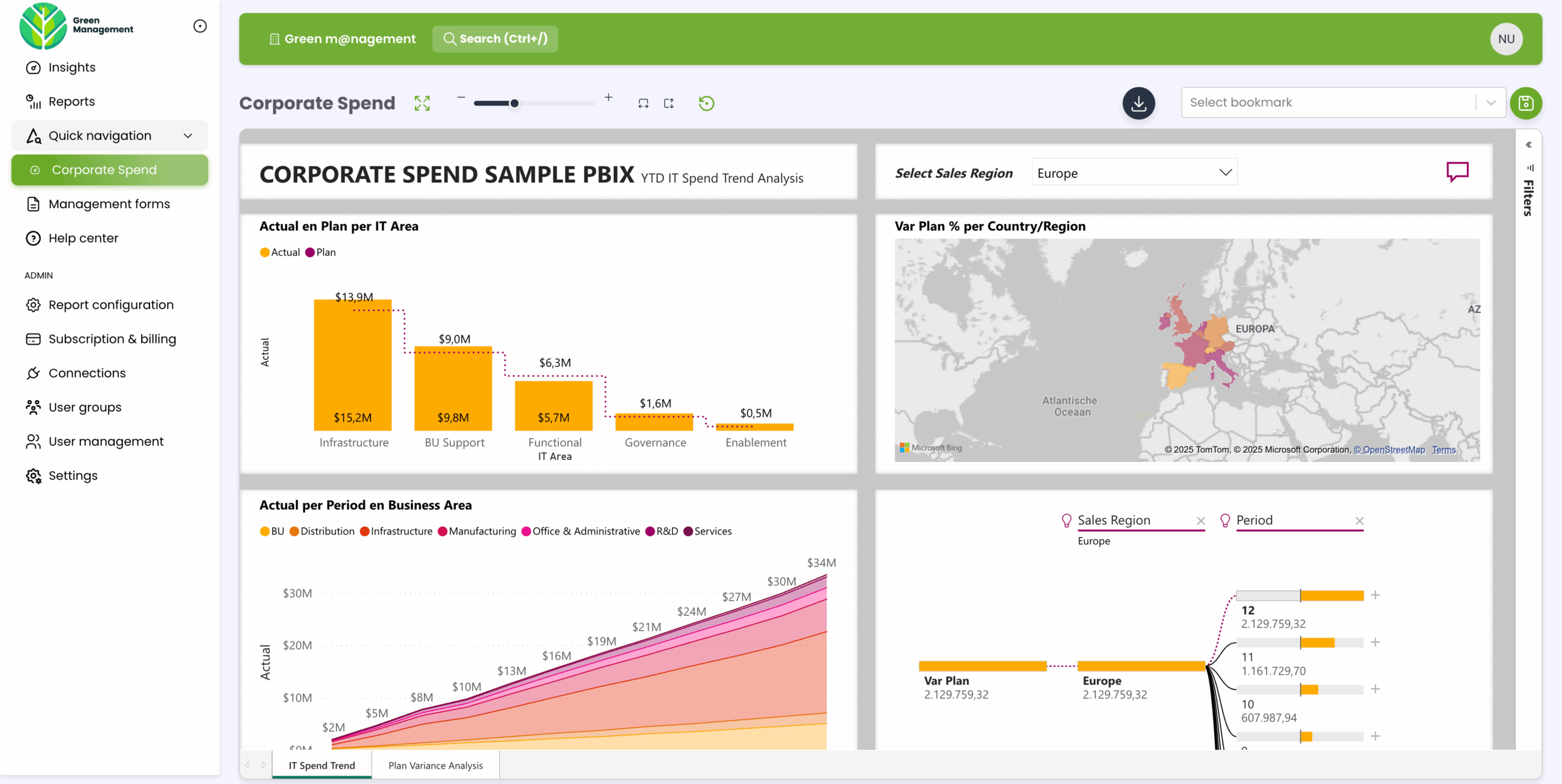
DataTako is built specifically for the external-sharing problem. You connect DataTako to your existing Power BI workspaces, configure branding and access, and DataTako delivers your reports to internal and external users in a fully branded portal — without per-viewer Pro licences and without the months of engineering work that custom Embedded builds require.
- No per-viewer Pro licences — share with unlimited internal and external users on one Fabric capacity, including below the F64 threshold.
- White-label by default — your domain, your logo, your colours, no Microsoft chrome. Different branding per client if you're an agency.
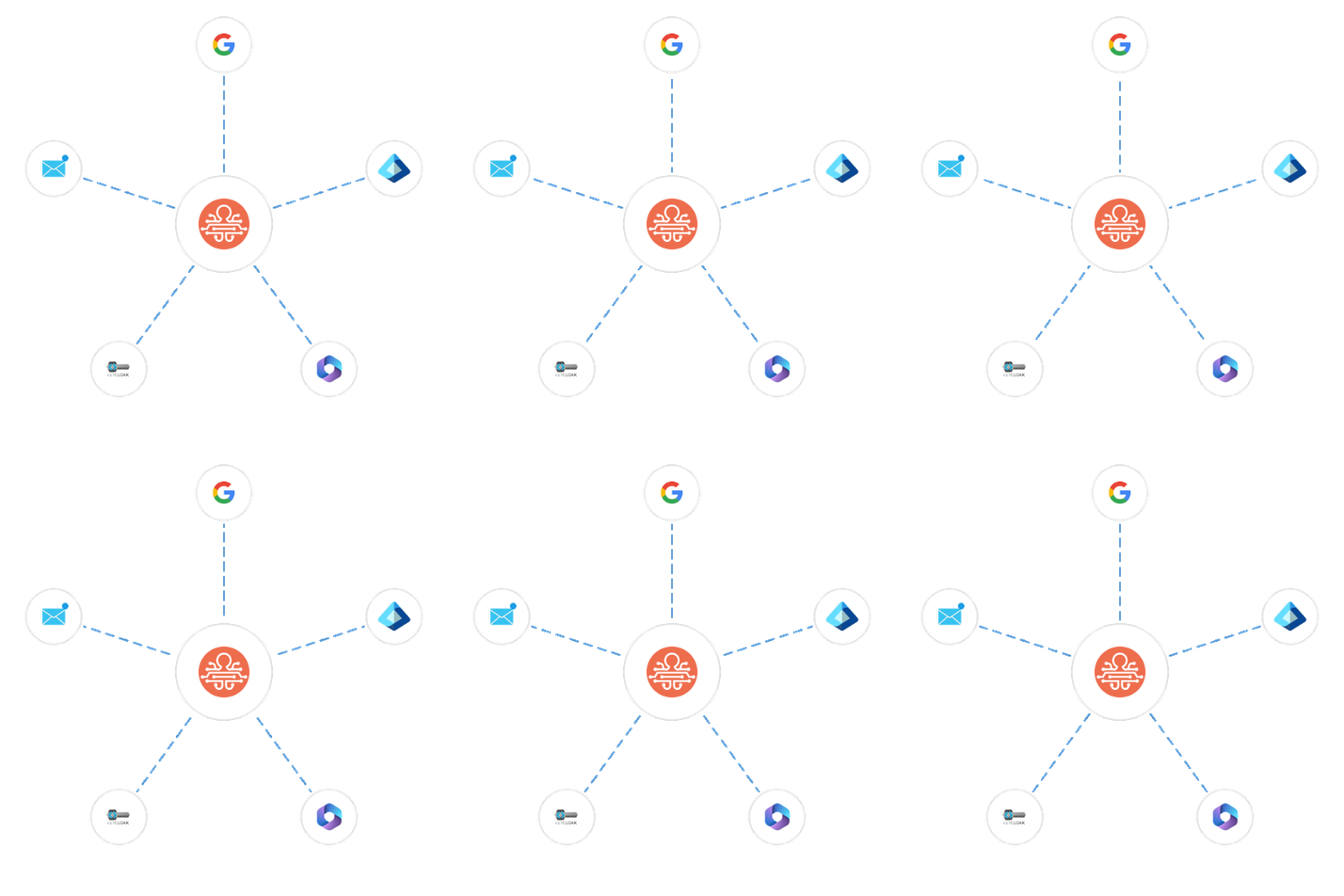
- Granular access control — user-level and group-level permissions with full Row-Level Security support, scoped to your customer identities.
- Smart capacity management — automated pause and resume of your Fabric capacity based on viewer activity, cutting compute costs by up to 70 percent.
- Up and running in minutes — not the four-to-six months a custom Embedded build takes.
A typical setup: one Fabric F2 capacity (~€263/month) plus a DataTako Launch plan with unlimited users (€279/month) plus a handful of Pro licences for creators (~€70/month). Total around €610/month for unlimited external viewers — versus around €1,400/month for the same audience on Pro alone. See the full cost breakdown on the optimise Power BI licence costs page and DataTako's pricing page.
Teams that would have spent four to six months building Embedded into their product are sharing branded dashboards within ten minutes of signing up. See how DataTako works or read the MeerMetData case study.
DataTako doesn't replace Power BI — your reports, models, and data stay in Microsoft's ecosystem. We're the delivery layer for everyone outside your Pro-licensed core team.
Frequently asked questions
What's the easiest way to share a Power BI report? For a single Pro-licensed colleague, the sharing link from the Power BI Service is two clicks. For anything bigger, the answer depends on whether the audience is internal or external and how many viewers there are.
Can I share Power BI reports with people outside my company? Yes, but not easily through the standard Power BI Service. The options are guest accounts (which scale poorly), Power BI Embedded (major engineering work), Publish to Web (public to the internet), or a platform like DataTako that handles external delivery for you.
Do all viewers need a Power BI licence? In the standard Power BI Service model, yes — Pro or PPU. The exceptions are Fabric F64+ capacities (free Pro for tenant users), Publish to Web (public, no security), and embedded scenarios via Power BI Embedded or DataTako (no per-viewer licence needed).
What's the cheapest way to share Power BI reports with many external users? Fabric capacity plus DataTako. Per-viewer licensing breaks down past about 30 external users; capacity-based pricing with an embedded portal is consistently cheapest beyond that. See Power BI licensing.
Is Publish to Web safe to use? Only for genuinely public data. Publish to Web generates a public URL that anyone with the link can view, and search engines have indexed those URLs in the past. Never use it for confidential or internal data.
What's the difference between sharing a report and publishing a Power BI App? Sharing a report gives access to one specific report. A Power BI App is a curated package of dashboards and reports published from a workspace, with navigation and version control. Apps work better for broad audiences; direct sharing works for one-off cases.
Can I share Power BI reports without giving every viewer a licence? Yes — that's exactly what Fabric capacity plus DataTako enables. Viewers consume content without their own Power BI licence. Try a free trial →
How do I control what data different viewers see? Configure Row-Level Security in your data model. RLS filters report data based on viewer identity, so the same report shows different slices to different users.
Can I brand a shared Power BI report with my own logo and domain? Not natively. Power BI Service is Microsoft-branded. White-labelling requires either a custom Power BI Embedded build or a portal like DataTako that handles branding for you.