

TL;DR. Power BI won't let you share reports with people outside your organization by default. There are four realistic ways around it: invite them as Microsoft Entra B2B guests, use Power BI's built-in embed options, put your workspace on a Fabric capacity, or use a ready-made portal built on top of that capacity. Guests are fine for a handful of users, Publish to Web is public and insecure, a capacity removes per-viewer licenses but leaves you building the portal, and a platform like DataTako gives you the portal without the build. The table below compares all four. If you just want the short answer: for more than about 25 external viewers, you want a capacity-based method, and if you'd rather not build the portal yourself, that's where DataTako comes in.
Why sharing Power BI externally is awkward in the first place
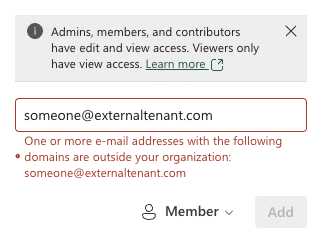
Power BI is built for internal reporting. Inside your organization you publish to a workspace, share with colleagues by email, and everyone authenticates with their work account. The moment your audience is external, customers, clients, distributors, partners, that model breaks. By default Power BI only lets you invite people from within your own tenant, and the workarounds each come with their own trade-offs around licensing, security, and branding.
Here are the four methods that actually work, what each is good at, and where each falls apart.
Method 1: Invite external users as Microsoft Entra B2B guests
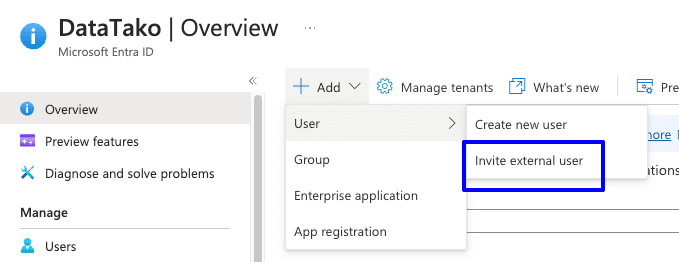
How it works. In the Azure portal you go to Microsoft Entra ID and invite the external person as a guest. Once they've accepted, they show up in the share dialog of your report like any internal user.
The catch. Each guest still needs a Power BI Pro or PPU license to view the report, unless your workspace sits on a Premium or Fabric capacity. So the "free" part isn't free, and you're also adding external identities to your tenant.
Best for. A small, stable group of external people, say a handful of partners you work with closely. It scales poorly past roughly 25 to 50 users, both on cost and on the admin overhead of managing guest accounts.
Method 2: Use Power BI's built-in embed options
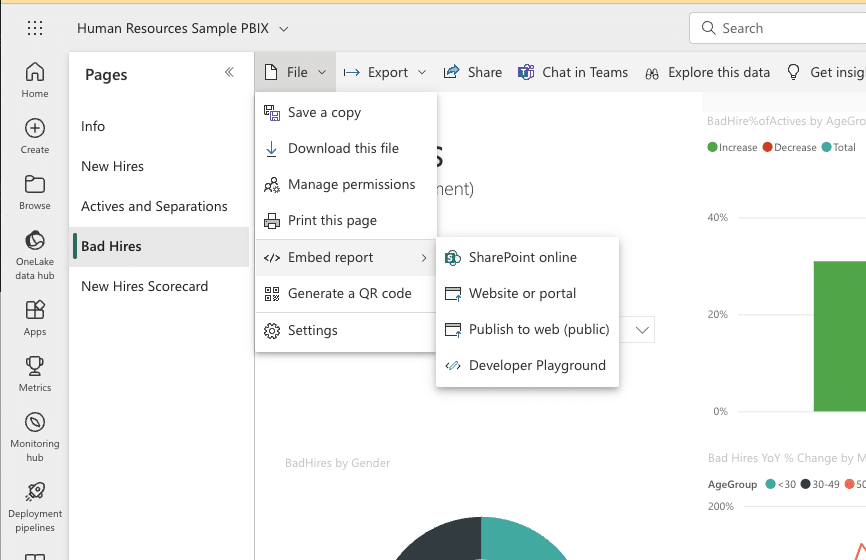
How it works. Open the report, go to File, then Embed report, and pick an option: SharePoint Online, a website or portal, or Publish to Web.
The catch. The SharePoint and website/portal options still require every viewer to sign in with a Power BI Pro or PPU license, so they don't solve the external-user problem on their own. Publish to Web is the exception: it needs no license, but it makes your report anonymously public to anyone with the link. There's no security and no control over who sees it.
Best for. Publish to Web is genuinely useful for data you want public, like a report on your marketing site. It should never touch customer data or anything sensitive. For the difference between this and real embedding, see Publish to Web vs Embedded.
Method 3: Put your workspace on a Fabric capacity
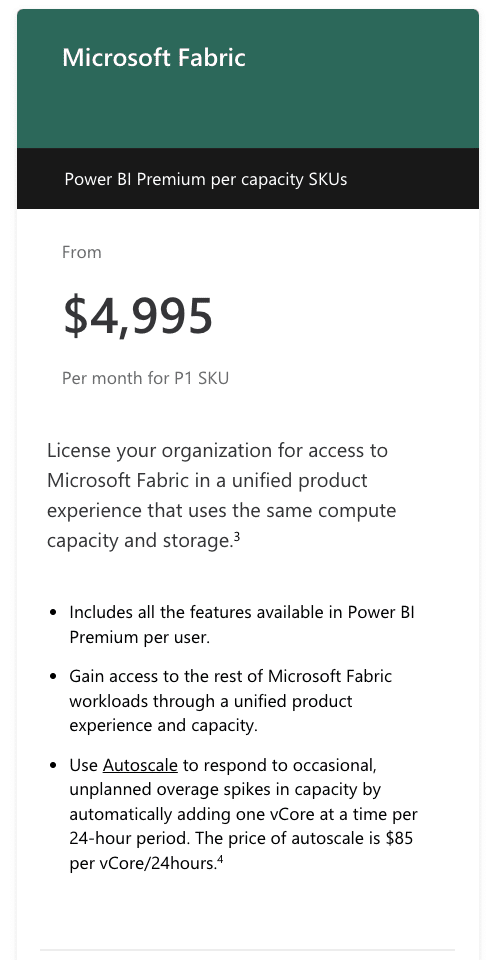
How it works. When your workspace is backed by a Fabric capacity (an F-SKU, starting at F2), you can share reports with viewers who need no individual Power BI license. You pay for the capacity, not per person. This replaces the old Power BI Embedded A-SKUs, which Microsoft folded into Fabric in 2024.
The catch. The capacity removes the licensing wall, but it doesn't give you a portal. You still have to build the thing your external users actually log into: authentication, embed tokens, multi-tenant Row-Level Security, branding, user management. That's real engineering, commonly four to six months for a production setup, and it never fully stops.
Best for. Teams with the engineering capacity to build and maintain their own embedding layer, and enough viewers that the per-license math clearly favors a capacity. You can model that break-even with our cost calculator.
Method 4: Use a ready-made portal like DataTako
How it works. DataTako sits on top of the same Fabric capacity and handles the portal for you. You connect your Power BI workspace, and your external users log into a branded portal on your own domain. No Microsoft account, no Pro license, no build.
The catch. It's a paid platform on top of your capacity, so there's a subscription. In return you skip the months of engineering and the ongoing maintenance.
Best for. Anyone who wants the capacity-based economics (no viewer licenses) but doesn't want to build the portal themselves. This is the route we cover in depth on our share Power BI without a Pro license page.
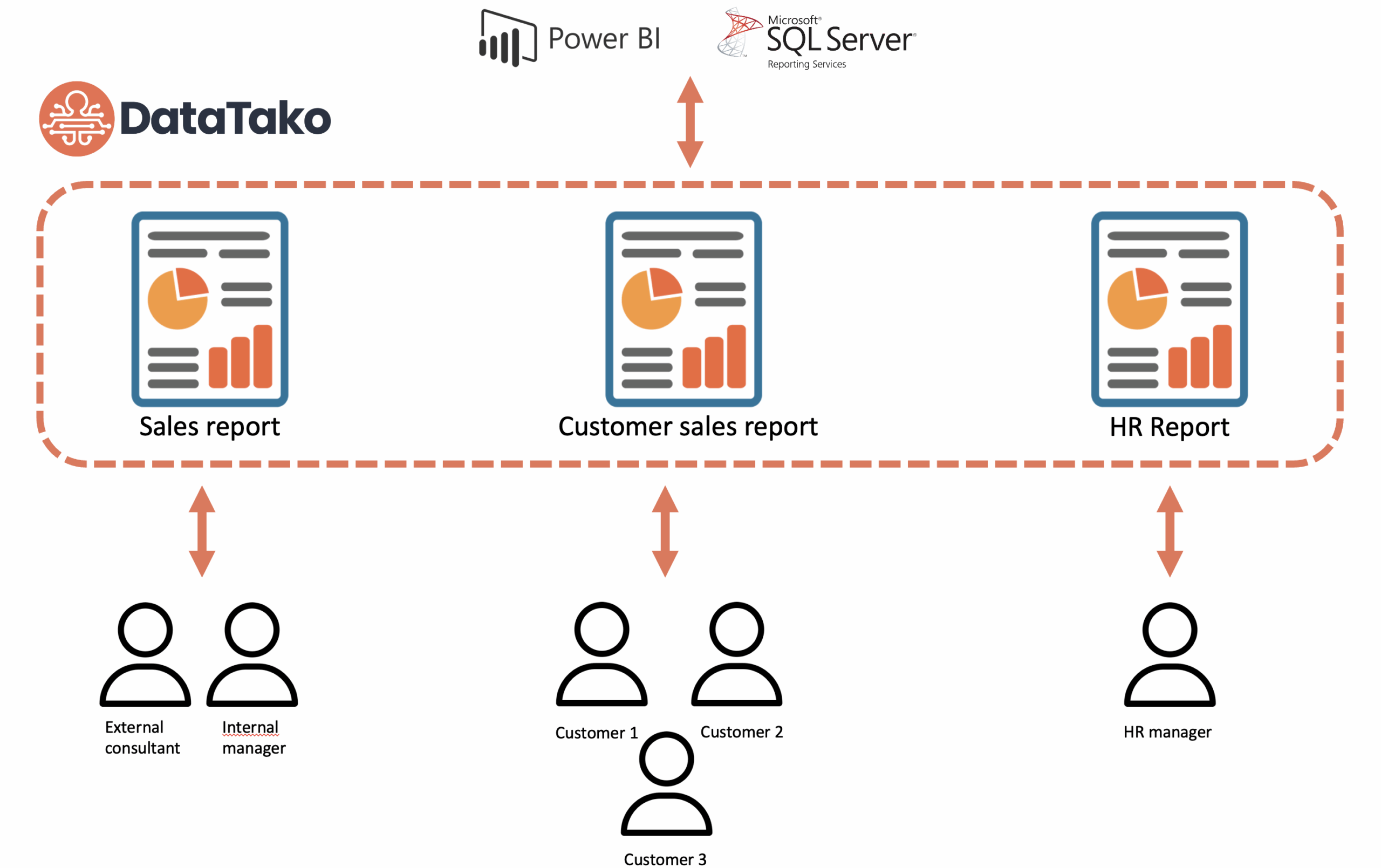
The quick logic: if you have a few external users, B2B guests are the path of least resistance. If your data is meant to be public, Publish to Web is fine. Once you're past about 25 viewers and the data is private, you want a capacity, and then the only question left is build versus buy: build the portal yourself on the capacity, or let DataTako handle it.
When to move off guest accounts
Most teams start with B2B guests because it's the obvious first step. The signal that you've outgrown it is usually one of three things: the licensing bill climbs as viewers grow, managing guest identities becomes a chore, or you want the reports to look like your product instead of Microsoft's. At that point a capacity-based method (Method 3 or 4) is the move.
Frequently asked questions
Can I share Power BI reports with external users without a Pro license? Yes, but only with a capacity-based method. B2B guests and the SharePoint/website embed options still require a Pro or PPU license per viewer. A Fabric capacity, or a platform like DataTako on top of one, lets viewers in with no license.
What's the difference between B2B sharing and Power BI Embedded? B2B adds the external person to your tenant and requires them to have a license and a Microsoft account. Embedding on a capacity serves the report to viewers with no account and no license, which is why it scales where B2B doesn't.
Is Publish to Web safe for client data? No. Publish to Web makes the report public to anyone with the link, with no authentication. Use it only for data you're happy to show the whole internet.
How many external users is too many for guest accounts? There's no hard limit, but most teams find guest accounts get painful past roughly 25 to 50 users, on both cost and admin. Beyond that, a capacity-based method is cheaper and easier.
Do I need to rebuild my reports to share them externally? No. All four methods use the reports you've already built in Power BI. Nothing gets recreated.
The short version
There are four ways to share Power BI externally, and they sort cleanly by audience size and data sensitivity. Small and stable: B2B guests. Public data: Publish to Web. Private data at scale: a Fabric capacity, either built yourself or delivered through a portal like DataTako. If you want to see the capacity route without the build, start a free trial or book a demo.

