
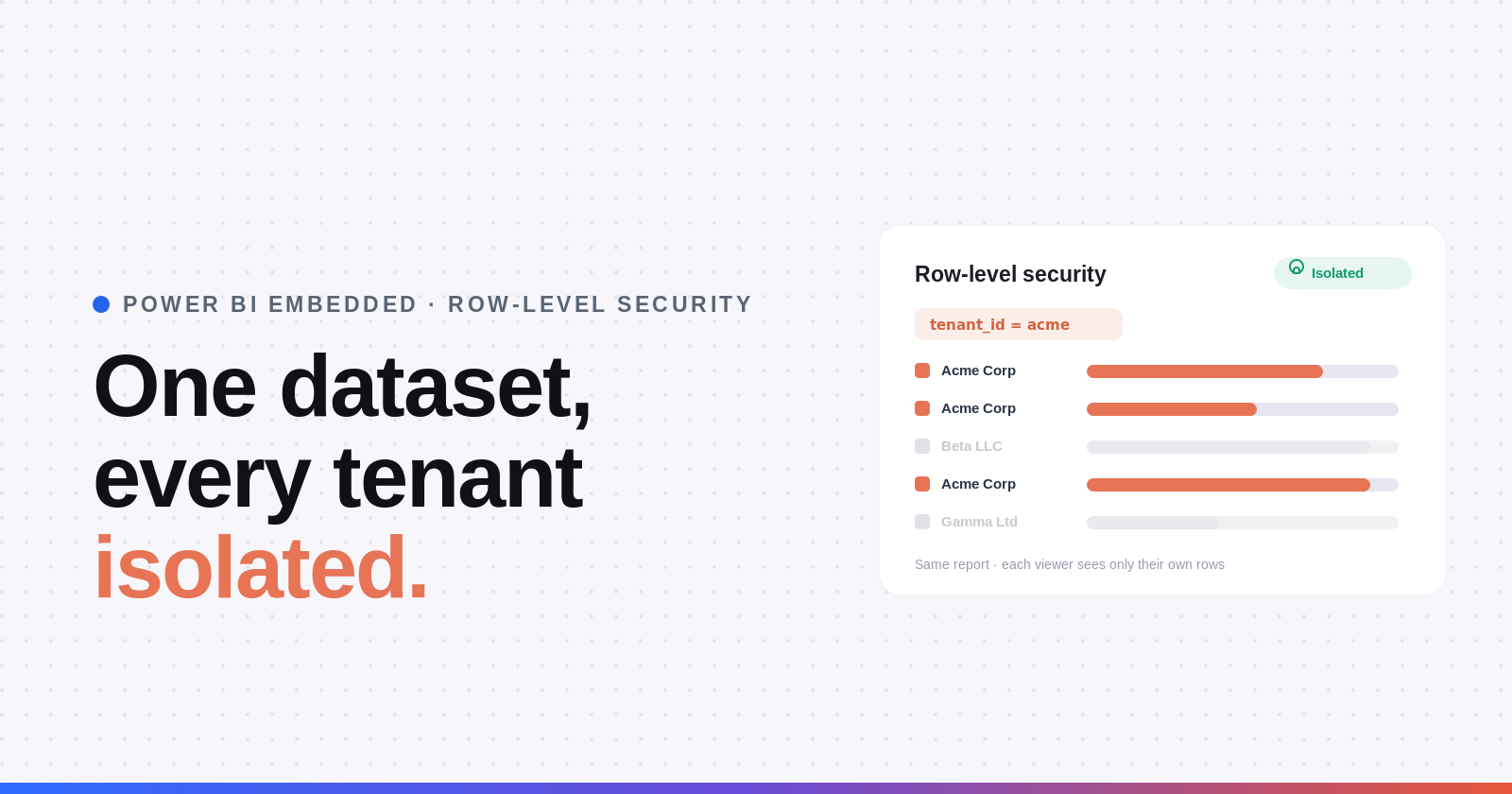
If you already know why multi-tenant RLS matters and you just want to build it, this is the guide. We'll go from an empty model to a working embed token that shows each viewer only their own data — with the exact DAX, the exact token payload, and the checks that catch a leak before your customers do.
This is the hands-on companion to our architecture piece, Power BI Embedded with RLS: Multi-Tenant SaaS Patterns. That post explains the pattern and the trade-offs; this one is the build. If you're still deciding between static and dynamic RLS or between RLS and a workspace-per-tenant model, start there and come back.
The setup in six steps
- Add a users (or tenants) lookup table to your model.
- Create one dynamic RLS role whose DAX filter resolves the tenant at query time.
- Test it in Power BI Desktop with View As before you write a single line of backend code.
- Publish to a workspace on a Fabric capacity and wire up a service principal (app-owns-data).
- Generate an embed token that carries the effective identity — the role plus the user or tenant key.
- Refresh the token before it expires so long sessions don't break.
Everything after step 3 is application code. Everything up to and including step 3 happens in Power BI Desktop and is where most RLS bugs are actually introduced.
Before you start
You'll need: a Power BI dataset (Import or Direct Query) with a tenant_id column on every fact table that holds tenant-specific data, a Fabric F-SKU capacity (embedded works on any F-SKU, including F2), and an Entra app registration you can use as a service principal. If your fact tables don't have a tenant identifier yet, fix that first — dynamic RLS has nothing to filter on without it.
Step 1 — Add a users lookup table
Dynamic RLS works by matching the person viewing the report against a lookup table that says which tenant they belong to. Add a small dimension table — call it Users — with at least two columns:
user_key is whatever stable string your application will pass at render time. It can be an email, a GUID, or an internal user ID — it just has to match exactly what you put in the embed token later. Relate Users[tenant_id] to your fact tables' tenant_id (single-direction, dimension → fact), or skip the relationship and filter directly with LOOKUPVALUE as shown below.
Keep this table lean. It's read on every query, so a few thousand rows is nothing but a few million unindexed rows will cost you.
Step 2 — Write the dynamic RLS role
In Power BI Desktop, go to Modeling → Manage roles and create a single role called Tenant. You have two DAX functions to identify the viewer, and the choice matters for embedded:
Option A — USERPRINCIPALNAME() matches the identity Power BI resolves for the session (usually an email). Use it when your user_key is an email address:
[tenant_id] =
LOOKUPVALUE(
    Users[tenant_id],
    Users[user_key], USERPRINCIPALNAME()
)
Option B — CUSTOMDATA() reads a free-form string you pass in the embed token, independent of any real identity. This is the cleaner choice for app-owns-data embedding, because your viewers never have a Power BI identity at all — your app just hands Power BI a tenant key:
[tenant_id] = CUSTOMDATA()That's the whole filter. If CUSTOMDATA() returns "acme", the role shows only rows where tenant_id = "acme". No lookup table even required in the simplest case — though keeping one is still useful for validation and for mapping users to tenants in your app.
Apply the filter to every fact table that contains tenant data, or make sure each one is filtered transitively through a relationship. A fact table with no filter and no filtered relationship is a leak.
Step 3 — Test it in Desktop before you touch code
This is the step teams skip and regret. In Power BI Desktop, go to Modeling → View As, tick the Tenant role, and:
- For the
USERPRINCIPALNAME()version, enter a test email in the Other user box. - For the
CUSTOMDATA()version, enter a tenant key in the Custom data box.
The report now renders as that viewer would see it. Click through every page and visual and confirm no other tenant's numbers appear. Then switch the value to a different tenant and confirm the data changes. If a visual shows the same totals regardless of the identity you enter, that visual is reading from an unfiltered table — fix it now, because it will leak in production too.
Step 4 — Publish and set up the service principal
Publish the dataset and reports to a workspace that sits on your Fabric capacity. Then register the workspace to be accessed by a service principal:
- In Entra, create (or reuse) an app registration and generate a client secret.
- In the Fabric/Power BI admin portal, enable service principals can use Power BI APIs for a security group, and add your app to that group.
- Add the service principal as a Member (or Admin) of the workspace.
Your backend authenticates as this service principal — not as individual viewers. This is what "app-owns-data" means, and it's why embedded viewers never need a Power BI Pro licence.
Step 5 — Generate the embed token with the effective identity
Now the piece that actually enforces RLS at render time. When a viewer opens a report, your backend calls the Generate Token API and includes an identities object that sets the role and the tenant key. Here's the request body for the CUSTOMDATA() approach:
POST https://api.powerbi.com/v1.0/myorg/GenerateToken
{
  "reports": [{ "id": "<reportId>" }],
  "datasets": [{ "id": "<datasetId>" }],
  "identities": [
    {
      "username": "acme-portal-user",
      "customData": "acme",
      "roles": ["Tenant"],
      "datasets": ["<datasetId>"]
    }
  ]
}
Key points:
rolesmust contain the exact name of the role you created (Tenant). Case-sensitive.customDatais the string your DAXCUSTOMDATA()reads — set it to the viewer's tenant key. It's a single string, max 1024 characters.usernameis required even when your filter usesCUSTOMDATA(); for theUSERPRINCIPALNAME()approach,usernameis the value the filter matches against, so set it to the viewer's email.- The identity is set server-side and cannot be overridden by the browser. That's what makes it secure — never trust a tenant ID that came from the client without re-validating it before you mint the token.
Return the token to your frontend and load the report with the Power BI Embedded JavaScript SDK as usual. Power BI applies the role, runs the filter, and the viewer sees only their tenant.
Step 6 — Refresh the token before it expires
App-owns-data embed tokens have a maximum lifetime of about one hour. If a viewer leaves a dashboard open and clicks a slicer 70 minutes later, the request fails with a 403 and the report looks broken. Fix it by refreshing proactively: get the token's expiration from the Generate Token response, and a minute or two before it lapses, fetch a fresh token from your backend and hand it to the embedded report with report.setAccessToken(newToken). Don't wait for the failure — refresh ahead of it.
Troubleshooting: "my RLS isn't filtering"
Most RLS problems fall into a handful of buckets. Microsoft's own telemetry suggests fewer than a third of Premium organisations have RLS correctly implemented on production datasets, so if something's off, you're in good company. Work down this list:
The single most common one is the first: the dataset owner testing the report and seeing everything, then panicking that RLS is broken. It isn't — owners just aren't subject to it. Always validate with an actual embed token or View As.
Static vs dynamic — a one-line reminder
If you have fewer than ~10 tenants that rarely change, static RLS (one role per tenant, hard-coded filter) is simpler. For anything that grows, dynamic RLS — the single-role pattern above — is the one that scales without redeploying the dataset every time you sign a customer. The architecture guide covers that decision in depth.
The parts you don't have to build
Steps 1–3 are Power BI modelling — you own those regardless. Steps 4–6 are where the engineering time goes: the service principal flow, per-session token generation, the tenant-to-key mapping, and token refresh. Budget two to four weeks to get that to production quality, plus ongoing maintenance as Microsoft's APIs evolve.
If you'd rather configure than code, that's exactly the layer DataTako replaces. You keep your Power BI dataset and its RLS roles; DataTako takes the user-to-tenant mapping from your system and generates the right embed token — correct role, correct customData — for every viewer, on your own branded domain. Same architecture, none of the plumbing. Most teams go from weeks of build to live in an afternoon.
Frequently asked questions
How do I set up dynamic RLS in Power BI Embedded?
Add a users/tenants lookup table to your model, create one RLS role whose DAX filter resolves the tenant at query time using CUSTOMDATA() or USERPRINCIPALNAME(), test it with View As in Power BI Desktop, publish to a Fabric-capacity workspace, and generate embed tokens whose identities object sets the role and the tenant key. The token — set server-side — is what enforces the filter for each viewer.
Should I use USERPRINCIPALNAME() or CUSTOMDATA() for embedded RLS?
Use CUSTOMDATA() for app-owns-data embedding. Your viewers have no Power BI identity, so passing a tenant key you control via customData is cleaner and avoids the external-identity (#EXT#) format problems that USERPRINCIPALNAME() runs into. Use USERPRINCIPALNAME() when the viewer signs in with a real Power BI/Entra identity that matches your lookup table.
Why is my Power BI RLS not filtering anything?
The most common reason is that you're testing as the dataset owner or a workspace admin, who bypass RLS by default. Test with an embed token that sets the roles array, or with View As in Desktop. Other causes: a fact table with no filter, a bidirectional relationship leaking across the boundary, or an identity-format mismatch.
Do I need a role for every tenant?
No — that's static RLS and it doesn't scale. With dynamic RLS you create one role whose filter resolves the tenant from the embed token, so new tenants need only a data row (and, optionally, a lookup entry), never a dataset change.
Does the embed token identity really prevent tenants from seeing each other's data?
Yes, because the effective identity is set by your backend when it generates the token and cannot be changed by the browser. The security caveat is on your side: never generate a token from a tenant ID that arrived from the client without re-validating it against the authenticated session first.
How long does an embed token last, and what happens when it expires?
App-owns-data embed tokens last up to about an hour. When one expires mid-session, the next interaction fails with a 403. Refresh proactively — read the expiration from the Generate Token response and call setAccessToken with a fresh token shortly before it lapses.
Can DataTako generate the RLS embed tokens for me?
Yes. The RLS roles stay in your Power BI dataset; DataTako handles authentication, per-viewer token generation with the correct role and customData, and token refresh — so you don't build or maintain that layer. Book a walkthrough to see it configured live.
Ship it, but test the leak first
Dynamic RLS in Power BI Embedded is a well-trodden path: one lookup table, one role, one CUSTOMDATA() filter, and an embed token that carries the tenant key. The failure mode that matters isn't complexity — it's the untested visual that quietly reads from an unfiltered table. So before you go live, impersonate two different tenants and click every visual on every page. If the numbers change with the identity, you're done.
Want to skip the token-generation engineering entirely? Start a free trial on your existing Power BI workspace, or book a 30-minute walkthrough to see multi-tenant RLS embedded on your own domain.

